

How to count inventory
Count on your phone, shelf by shelf. The app saves every entry right away.
Step 1 of 5
Tap Continue counting
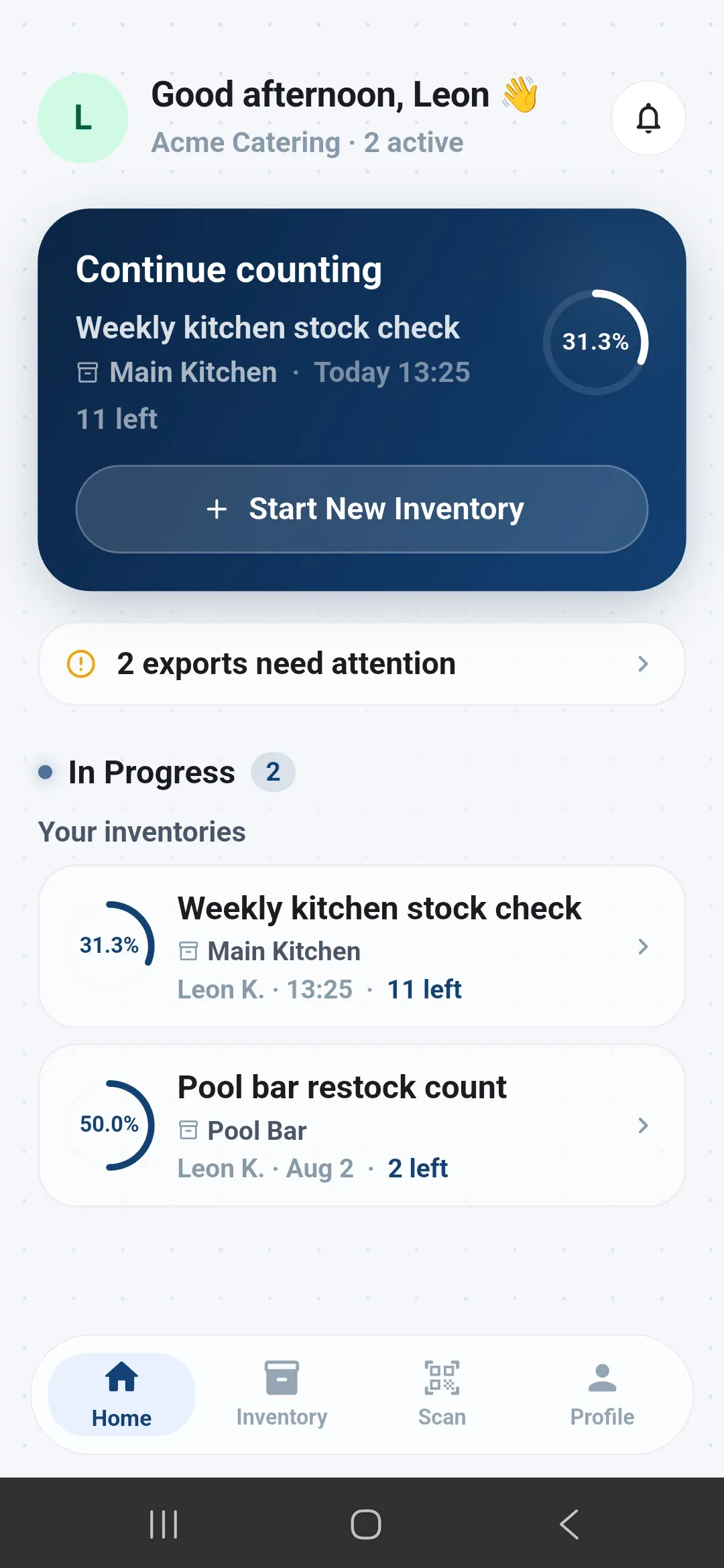
On the home screen, tap the blue card of the inventory you are counting.
Step 2 of 5
Choose an item
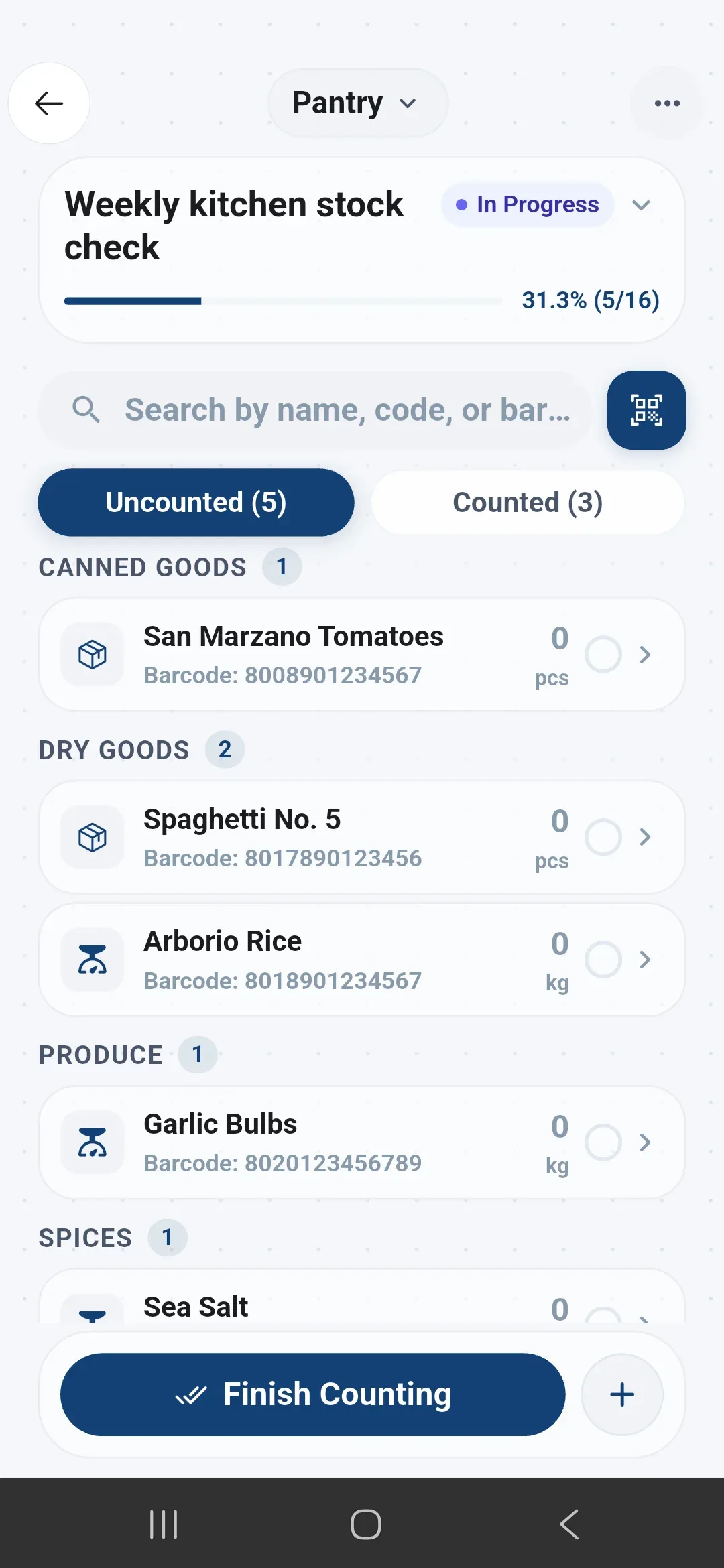
Tap the item you are counting, for example San Marzano Tomatoes.
Step 3 of 5
Enter the quantity
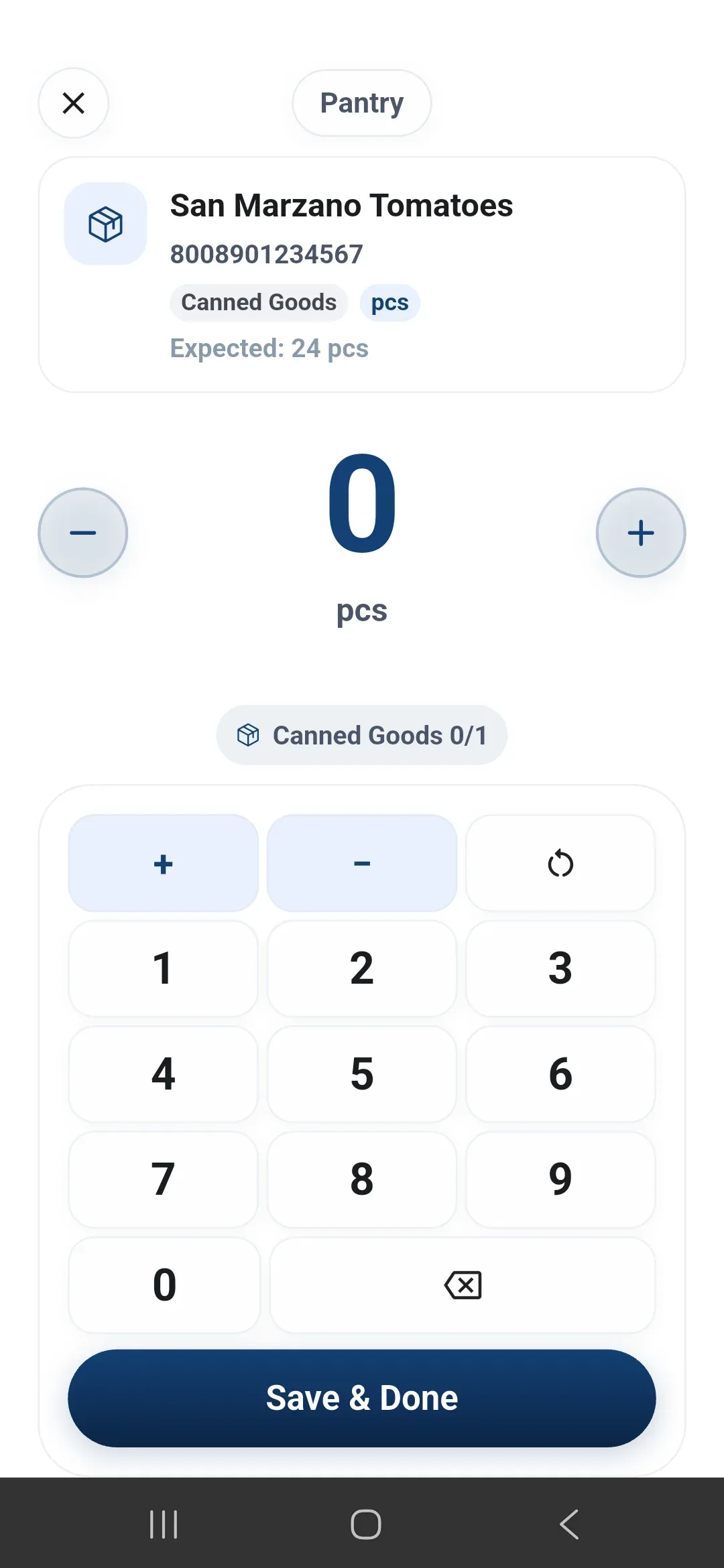
Use the number pad to enter how many you see.
Step 4 of 5
Tap Save & Done
The quantity is saved and you return to the item list.
Step 5 of 5
Finish counting
When all items are counted, tap Finish Counting.
Fixes for the most common problems
What if…?
What if I can't see the inventory?
- What you see
- There is no Continue counting card on the home screen.
- What it means
- The home screen only shows inventories in progress.
- What to do
- Look for finished inventories on the Inventory tab.
What if I want to see what I counted?
- What you see
- The list only shows items you have not counted.
- What it means
- Counted items are on a separate tab.
- What to do
- Tap the Counted tab above the list.
Small habits that save time
Tips from practice
- Count in order, shelf by shelf, so you don’t skip an item.
- Count what you see in front of you, not what you think should be there.
- Count open bottles separately from sealed ones.
Was this guide clear?
Tell us what was unclear